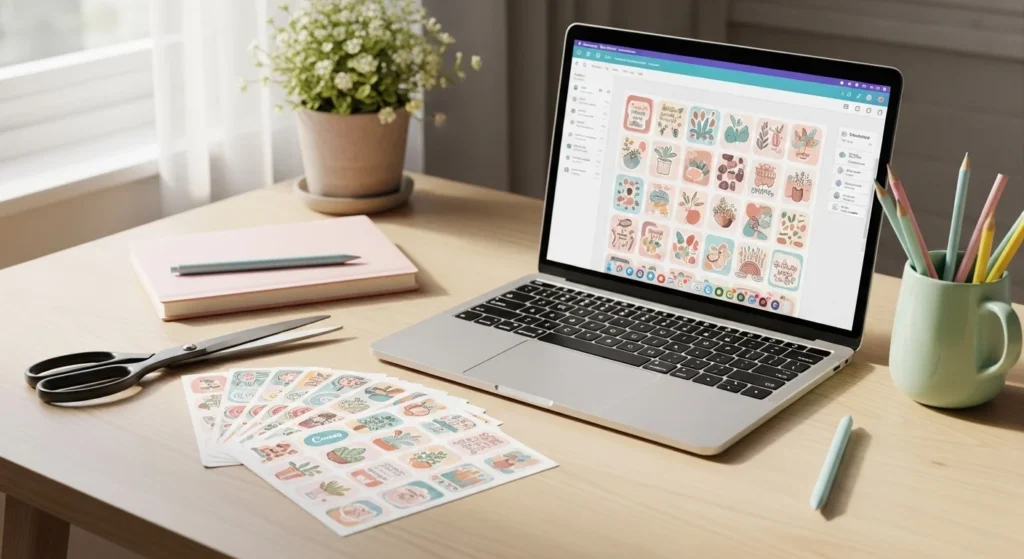
Making printable stickers in Canva is one of the easiest ways to start creating sticker sheets. You don’t need design experience, complex software, or expensive tools. Canva’s templates, sticker elements, and drag-and-drop layout tools make the process simple and fast.
Whether you want planner stickers, labels, aesthetic icons, or small business packaging stickers, Canva provides a beginner-friendly workflow that looks professional.
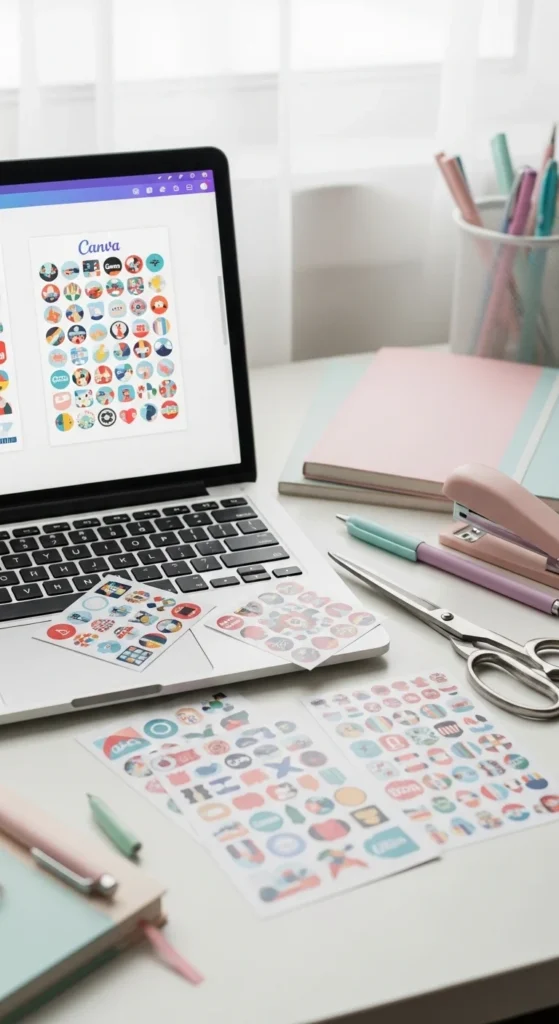
Here’s a step-by-step guide to making printable stickers using Canva templates.
Create a Canvas That Matches Sticker Paper
Start by matching your canvas size to your sticker paper.
Most printable sticker sheets use:
- 8.5 × 11 inches (US Letter)
- A4 if you print internationally
Matching canvas size prevents scaling issues when printing.
Setup checklist:
- Create custom size canvas
- Turn on rulers and guides
- Leave small margins for cutting
This ensures your design prints exactly as expected.
Use Canva Sticker Elements and Templates
Canva has a huge library of sticker-style graphics.
To find them:
- Go to Elements → Stickers
- Search themes (planner, cute, aesthetic, icons)
- Combine icons into a sheet layout
Template tip:
Start with a themed sheet instead of random stickers. Consistency makes sticker sheets look professional.
Popular beginner themes:
- Planner icons
- Minimal labels
- Seasonal stickers
- Affirmations
- Small business packaging stickers
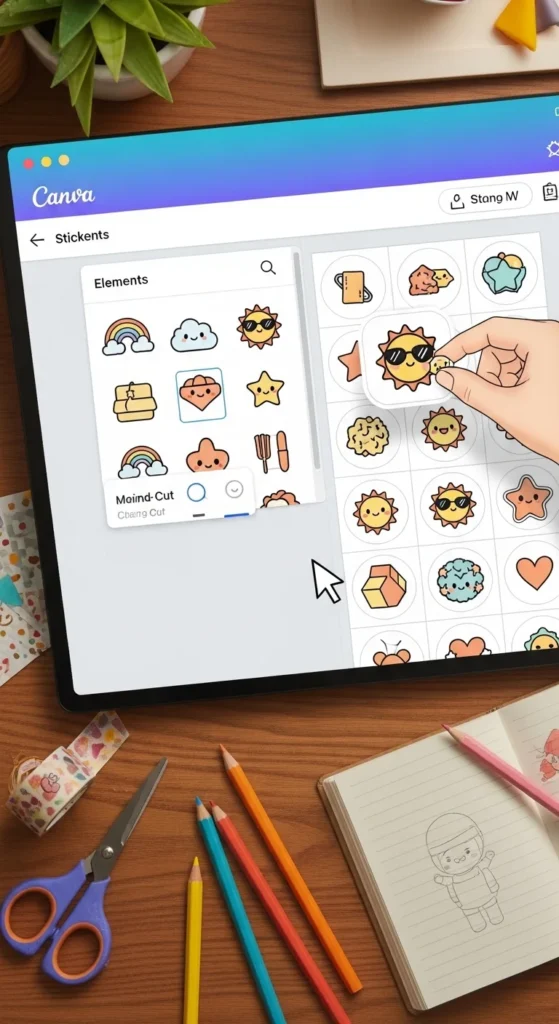
Using ready elements speeds up the process dramatically.
Add White Outlines for a Sticker Look
White outlines make stickers readable and easier to cut.
How to add in Canva:
- Select design
- Edit photo → Shadows → Glow
- Set blur to 0
- Increase size
- Change color to white
Recommended outline size:
- About 2–3 pt equivalent
White outlines create the classic sticker style and hide small cutting imperfections.
This step instantly improves the final result.
Arrange Stickers Using Grid and Alignment Tools
Good spacing makes sticker sheets look polished.
Layout tips:
- Turn on grid snapping
- Keep equal spacing between stickers
- Use alignment tools for rows
- Fit 12–20 stickers per sheet depending on size
Avoid overcrowding. Clean layouts cut better and print more clearly.
If you sell stickers, consistent spacing also improves production speed.
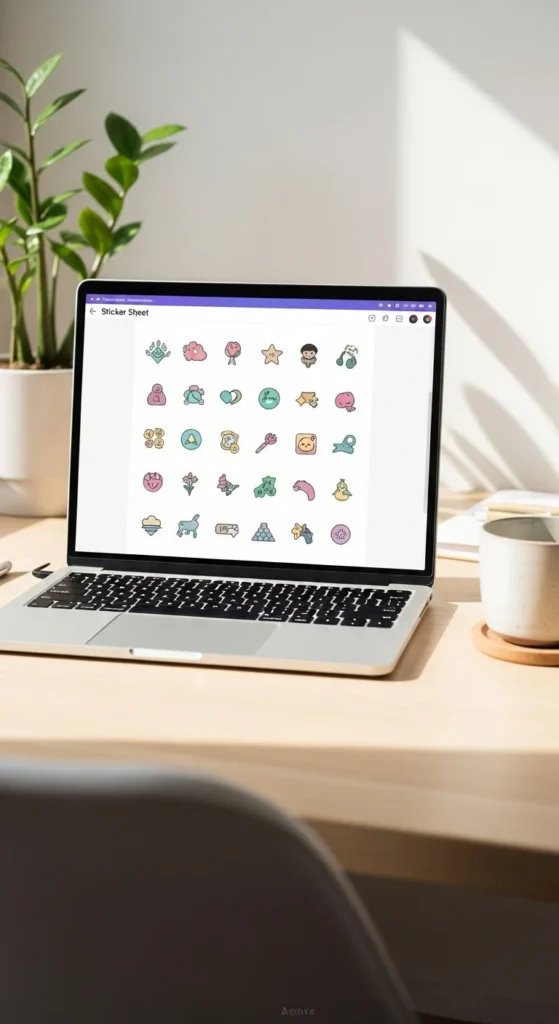
Balanced layouts reduce wasted space while keeping sheets easy to cut.
Use Bulk Create for Fast Variations (Optional)
If you want multiple versions of similar stickers, Canva’s Bulk Create tool saves time.
Examples:
- Name stickers
- Quote stickers
- Label sets
- Planner day labels
Workflow idea:
- Create one sticker design
- Upload text list
- Generate many variations automatically
This is useful for Etsy shops or themed bundles.
Even without Bulk Create, duplicating designs manually works well.
Prepare Files for Printing (Important)
Before exporting, check your file setup.
Print preparation checklist:
- Resolution: 300 DPI equivalent
- Leave small margins
- Avoid elements near edges
- Keep consistent colors
Enable crop marks and bleed if your workflow requires print-then-cut.
High-resolution exports prevent blurry stickers.
Export as PNG With Transparent Background
PNG export is the most common format for printable stickers.
Why PNG works well:
- Keeps transparent background
- Preserves white outlines
- Compatible with cutting machines
- Useful for digital stickers too
Export tips:
- Download → PNG
- Choose highest quality
- Use transparent background option if needed
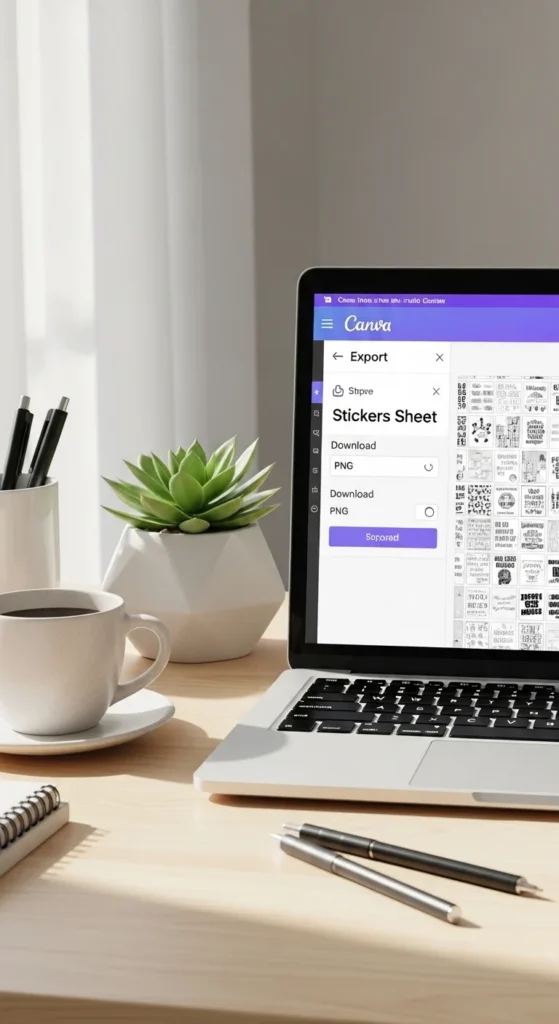
PNG files are flexible for both physical and digital sticker workflows.
Printing Your Canva Sticker Sheets
After exporting:
- Print test sheet on plain paper
- Adjust brightness if needed
- Print on sticker paper using high quality setting
- Let prints dry before cutting
Matte vinyl sticker paper is beginner friendly and reduces smudging.
If using a cutting machine, import PNG into your cutting software.
Digital Stickers From Canva (Bonus Use)
Canva designs also work for digital planners.
Workflow:
- Export individual stickers as PNG
- Import into GoodNotes or planner apps
- Use lasso tool to place stickers
This means one design can become both physical and digital products.
Many creators use this dual workflow.
Beginner Sticker Sheet Ideas
If you’re unsure where to start:
- Planner icons
- Label stickers
- Habit trackers
- Affirmation stickers
- Minimal aesthetic shapes
- Seasonal sticker sheets
- Packaging thank-you stickers
Start simple. Complexity comes naturally with practice.
Common Canva Sticker Mistakes (And Fixes)
Blurry stickers
→ Export high quality PNG
Crowded layouts
→ Reduce number of stickers per sheet
No white border
→ Add outline before export
Scaling problems
→ Match canvas to paper size
Cut issues
→ Keep spacing consistent
Small fixes make big improvements.
Final Thoughts
Canva makes printable sticker creation accessible for beginners while still powerful enough for advanced workflows. With the right canvas size, outlines, and export settings, your sticker sheets can look clean and professional.
Start with simple templates, use grid alignment, and export high-quality PNG files. Over time, your layouts become faster and more consistent.
Save this guide for later and try creating your first Canva sticker sheet today. ✨